
Blog ·
Court TV scoreboard setup for clubs: Chromecast, HDMI or Club TV
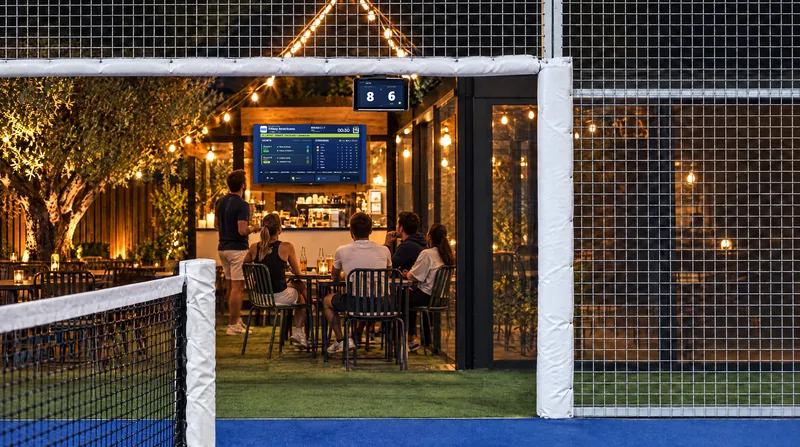
A live score on the TV next to the court gives a club two things: the players stop arguing, and spectators and sponsors look at the screen. The setup is not expensive; a TV, a phone, a way to mirror the screen and the right mount are all you need. This guide compares the options with their costs and walks you through the installation step by step, whether you run a single indoor court or a six-court outdoor club.
What you need
| Part | What for | Note |
|---|---|---|
| TV (43–55″) | Showing the score | Matte panel, 300+ nits; any TV on an indoor court, an outdoor TV or one under a canopy on an outdoor court |
| Phone / tablet | The app that keeps the score | A cheap Android tablet owned by the club is the least trouble; a player’s phone works too |
| Mirroring path | Getting the screen onto the TV | One of the four options below |
| Mount / holder | Hanging the phone or tablet by the court | A flexible gooseneck phone/tablet holder, clamped to the top corner of the court entrance |
| Speaker | Voice announcements | Bluetooth, weatherproof, next to the phone |
| Remote | Entering points | A Bluetooth remote or the player’s watch |
Four ways to get the score on the TV
1. USB-C → HDMI cable (the most reliable)
Sends the phone’s screen straight to the TV; no lag, no Wi-Fi needed. The phone has to support DisplayPort Alt Mode (most mid-range and flagship Androids; iPhone 15 and later). A 15–30 ft cable and an adapter with a power input (so the phone charges at the same time) are enough. Downside: the cable is visible along the side of the court; it has to be run along the fence. Check the phone before you buy the adapter: a cheap Android with a charge-only USB-C port will show nothing on the TV, and no adapter can fix that.
2. Chromecast / Google TV
Plugs into the TV’s HDMI port and the phone connects by screen mirroring. Wireless, five minutes to set up. The club’s Wi-Fi has to reach the courts; the lag is 1–2 seconds (not a problem for a score). Built into Android; to mirror from an iPhone, a TV with AirPlay or an Apple TV is easier. Put the Chromecast and the phone on the same network and give the courts their own access point if the clubhouse router is far away; most “the screen froze” complaints are Wi-Fi, not the app.
3. Screen mirroring (no extra device)
The way to try it without buying anything: on Android, “Screen mirroring / Smart View” connects the phone to a Miracast-capable TV; on an iPhone, Screen Mirroring in Control Center connects it to an Apple TV or an AirPlay-enabled TV. Wireless; there can be a slight delay, which is no problem for a score.
4. Club TV (the permanent solution)
With a club package you type scoresay.com/tv/yourclub into the TV’s browser once, and the screen runs independently of any phone. It finds the running tournament by itself: live courts, standings, the knockout bracket and the next match take turns; with no tournament on, it shows the courts and sponsors. The score is entered by the tablets on the courts or the players’ phones. Spectators follow the same tournament on their own phones at scoresay.com/t/CODE.
Which one should you choose?
- One court, a fixed TV, robustness: HDMI cable.
- Several courts, good Wi-Fi, a quick start: Chromecast.
- Trying it without buying anything: screen mirroring.
- Club, tournament and sponsor display on a screen that runs without a phone: Club TV. Many clubs combine two: HDMI on the show court for everyday play, Club TV at reception.
Step-by-step installation (HDMI example)
- Mount the TV outside the court, behind the glass wall, 6–7 ft off the ground; both teams must be able to see it and the sun must not hit the screen directly. The end of the court next to the entrance door is usually the best spot, because players walk past it on every change of ends.
- Fix the cable along the fence with cable ties; clamp the gooseneck holder to the top corner of the court entrance and let the phone or tablet hang in landscape.
- On the phone, set the screen never to sleep and turn the brightness right up; the app keeps the screen awake anyway.
- Put the speaker under the phone and pair it over Bluetooth; set the announcement volume to match the noise on court.
- Pair the remote and teach it the buttons; play a test match to check that the score comes through correctly on the TV and in the audio. Do the test from the far end of the court, where the players actually stand, not from next to the TV.
- Save the court’s rule card (golden point or advantage, tie-break or not) as the club’s standard setting.
Cost (approximate)
A 43″ TV plus wall mount, an HDMI adapter and a 30 ft cable, a phone holder, a Bluetooth speaker and a remote: for one court, a mid-range budget including the TV; if you already have the TV, the rest costs about as much as the speaker and the remote. Screen mirroring needs no extra hardware, and neither does Club TV: a screen that can open a browser and a club package are all it takes. Budget for a weatherproof enclosure or a cover for outdoor courts; rain and dust cost more TVs than players ever do.
Sponsors and revenue
With a club package the screen works even when it is idle: sponsor images rotate on the court screens and on Club TV, and the club sees in the report how many times, and for how long, each sponsor was shown. One screen per court is advertising space for the club. A local racket shop, a physio or the café next door is usually happy to pay for a logo that sits next to the live score all weekend.
In the app
The mirroring options are explained with screenshots on the big screen page; for clubs that want a court screen on every court, Club TV and a sponsor showcase there is the club solution. On a TV the app draws the score in large type with high contrast; in landscape mode the score can be read from many yards away.