
Support
Need a hand?
The app is developed by Novaurion Yazılım ve Yapay Zeka Çözümleri (İzmir Teknopark, Türkiye). Write to us with any problem, idea or question — we usually reply within one business day.
✉️ [email protected] 📞 +90 850 840 96 14Address: İzmir Teknopark, İYTE Kampüsü B2 Ar-Ge Binası, Gülbahçe Mah. Gülbahçe Cad. No: 1/48 İç Kapı No: 4, Urla / İzmir
About us and company details


FAQ
Frequently asked questions
Can I keep score with an Apple Watch?
Yes. Open the Watch app on your phone, scroll down and install ScoreSay from “Available Apps”. The watch shows two large areas: left is your team, right is theirs; the button below undoes the last point. The score shows on your wrist too. The match runs on the phone — the watch replaces the remote.
The app does not show up on my watch. What now?
First make sure both watch and phone are up to date — an old watchOS is the most common cause. Then check General › App Install › Automatic App Install in the Watch app on your phone. If it still does not appear, install it by hand from the “Available Apps” list.
Can I use a watch and a remote at the same time?
No — only one is active at a time. The app asks which one you want on first launch, and you can change it later in Settings › Devices. This is deliberate: the two paths work differently, and leaving both on can cause points to be entered by accident.
Which Apple Watch models are supported?
Any model running watchOS 10 or later — that is Apple Watch Series 4 and up, including SE and Ultra. Keeping both watch and phone up to date heads off the most common problem.
Can I keep score on the watch without my phone?
No. The phone runs the match and the watch is its remote: to enter points, the paired iPhone must be nearby with a match open. If the phone cannot be reached, a point tapped on the watch is not processed — it is deliberately not queued, because a point that lands ten seconds later on court is more confusing than one that never lands. Reading the last score does work offline: close and reopen the watch app mid-match and the score is right there.
I have a Wear OS or Samsung watch. Does it work?
Yes. Wear OS 3 and later are supported — Galaxy Watch 4 and up, and Pixel Watch. Install the watch app from the Play Store on your watch; the score shows on your wrist and you add points from there. The match runs on the phone.
Can I run a tournament with the app?
Yes. There is a full tournament mode for Americano, Mexicano, their team versions and Knockout: scores go in courtside with one tap and the standings update instantly, while the app also handles the draw and the serve order. Players see the table and their next match on their own phone, and spectators follow at scoresay.com/t/CODE in a browser. Details are on the Tournament page.
Which Bluetooth remotes work?
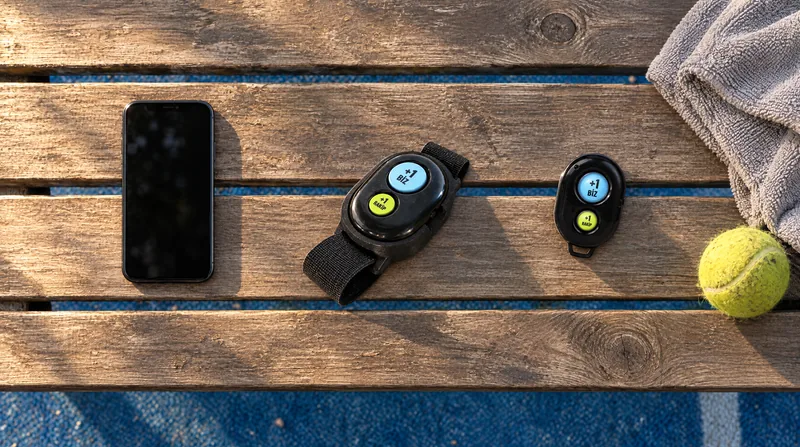
The app is not tied to one brand. Almost any remote that connects to the phone as a keyboard works, including cheap AB Shutter style selfie clickers. The “Learn key” feature records what your remote actually sends, so whatever you own can be used.
Can I use the app without a remote?
Yes. You can score by tapping the screen. The remote is simply a convenient way to score without touching the phone or interrupting play.
How is the score announced out loud?
The score is read out by a recorded announcer voice that the app downloads — “thirty – forty”; until the voice has downloaded, your phone’s own text-to-speech makes the announcements. English, Turkish, French, Spanish, Italian and German are supported, and you can turn on a second announcement language: every score is then called in both languages, one after the other — handy when the four players don’t share a language. Connect the phone to a Bluetooth speaker and the whole court hears it.
What happens if a match is interrupted?
Nothing is lost. Close the app or let the phone die — the match resumes where it left off, and you will see a “Resume” option when you open the app. Finished matches stay in the history screen.
Do I need an account?
Not to play: keeping score, joining a tournament with its code and watching the live board all work without one; your matches and settings stay on your phone. Running a tournament does need an account. It opens with your email address — no password needed, just the 6-digit code sent to your inbox (club team members can optionally set a password too); the profile asks for your name, country, city and phone number (for support and account security; shown to no one, and there is no SMS verification). With an account: you can run tournaments, your settings and match history follow you from device to device, you can add friends, matches you play together land in their history too, and friends can watch your score live; you can also sign up to a tournament where players sign up themselves through a link (open registration). Details in the privacy policy.
How do I add a friend?
Go to Account › Friends. Three ways: scan the QR code on your friend’s screen, share your invite link in a message, or type their code by hand. Both of you need to be signed in.
Can my friend watch my score live?
Yes. If you are both signed in and friends, pick your friend as a player when setting up the match: the match shows live in their app and is written to their history when it ends.
How do I turn on pickleball and Americano?
On the new-match screen pick Pickleball as the sport: side-out serving, games to 11, 15 or 21. Americano as a single match is under Rules › Match type: a target of 16, 21, 24 or 32 points, the serve rotates every 2 or 4 points, a draw is possible. Multi-court tournaments are a separate tournament mode.
How do I score a Padbol match?
On the new-match screen pick Padbol as the sport: by default it is scored the way many clubs in Türkiye play it — a set goes to the first side to reach 21 points (15 in a short set) and the serve changes hands every 2 points; the number of sets and the “win by 2” condition are chosen under Rules. If you prefer, you can switch to the official padel scoring (15-30-40, advantage or golden point, tie-break). The match is always doubles. Touch-count and attack-zone calls are made on court; the app keeps and announces the score. The Academy section has a ten-module Padbol course.
How do I hide the sports I don’t play?
The first time you open the app it asks which sports you are into. Your choice drives the new-match setup, tournament setup, the Academy courses and the badge tabs. To change it later go to Settings › General › Sports: switch any sport on or off, with at least one always on. Turning a sport off never deletes its Academy progress or the badges you earned — they come back when you switch it on again.
How do I delete my account?
In the app: Settings › Account › Delete account. Deletion is immediate, with no waiting period: everything goes, including your email, nickname, profile photo, device list, synced settings and match summaries. Tournaments you set up remain because they are shared with other people; only their link to your account is removed. Your sign-ups to tournaments that have not started yet are deleted too; if you paid a fee, sort out the refund with the organizer. Before deleting you can take a copy of your data with “Download my data”. If you cannot access the app, write to [email protected] from your account’s email address and we will carry out the same deletion.
Are there ads?
In the free version a short ad is shown when a match ends, and a small banner appears on the home, match history, badges and Academy screens — never on the score screen, never mid-game. The Ad-Free subscription (monthly or yearly) removes ads entirely; you pay with one tap through the store and never type anything into the app.
How do I cancel the Ad-Free subscription?
Subscriptions are managed through your store account: on Android via Google Play → Profile → Payments and subscriptions → Subscriptions; on iPhone via Settings → your name → Subscriptions. If you cancel, you stay ad-free until the end of the current period.
Can I use it for tennis too?
Yes. Choose tennis mode on the setup screen: singles and doubles, advantage or golden point, tie-break and super tie-break — all common set formats are supported.