
Put the score on the big screen.
Mirror the ScoreSay app from your phone to the courtside TV: spectators follow from a distance, players just glance up.
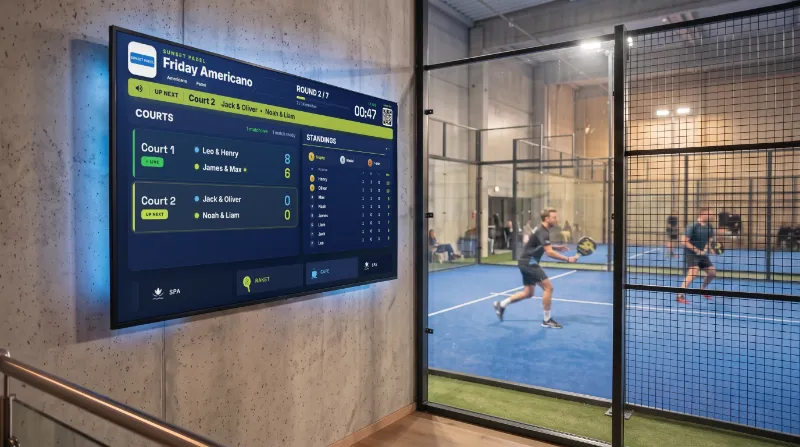
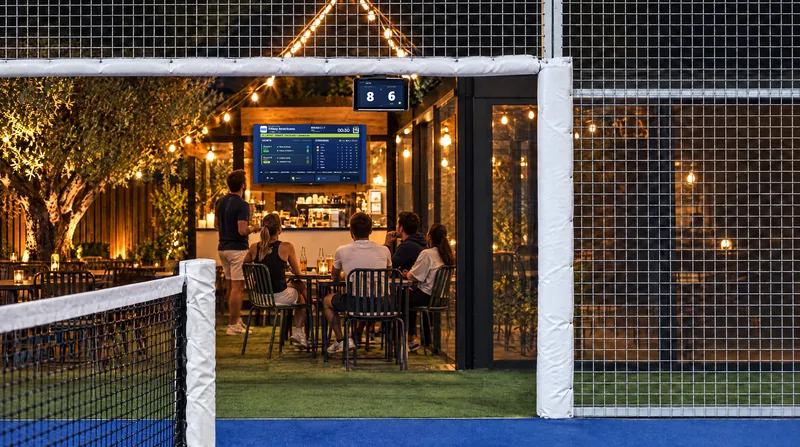
Phone on the mount, score on the TV with no cables: a five-minute setup.
Why the big screen
Great on a phone, something else on a TV.
Spectators follow from a distance
Waiting players and spectators read the score from outside the court — nobody asks “what’s the score?”.
Play is never interrupted
Players don’t reach for a phone; they glance up, see the score and get back to the game.
A professional look for tournaments
Club events and tournament matches look completely different with a big-screen scoreboard. With a club package, a running tournament shows on Club TV by itself — see tournament mode.
Methods
Four ways — from easiest to most permanent.
Three of them carry your phone’s screen to the TV and work on Android today; Club TV runs on any screen that can open a browser, independent of the phone. The ScoreSay screen never sleeps and the score is readable from anywhere on the court.
Google Cast / Chromecast (Wireless)
The easiest way: no cables, and the phone stays in your hand. Most modern smart TVs support it out of the box.
What you need
- A Chromecast-enabled smart TV, or a Chromecast plugged into an HDMI port
- Phone and TV on the same Wi-Fi network
- An Android phone with ScoreSay installed
Steps
- Open the notification shade and tap “Screen cast”.
- Pick your TV from the list.
- Open ScoreSay and start a match — the score is now on the TV.
On some brands this feature is called “Screen mirroring”, or “Smart View” on Samsung.
USB-C → HDMI cable
Zero lag and no Wi-Fi worries. The most dependable option for tournament matches.
What you need
- A phone that supports video output (DisplayPort Alt Mode) — not every model does, check the manufacturer’s page
- A USB-C → HDMI cable or adapter
- A free HDMI port on the TV
Steps
- Connect the cable to the phone and the TV.
- Select the HDMI input from the TV’s source menu.
- Open ScoreSay — the picture is on the TV instantly.
Use an adapter with pass-through charging and the phone stays topped up through long matches.
Club TV (in the browser)
No phone, no cable: the TV’s browser opens the club’s live screen. The closest thing to a permanent setup.
What you need
- A screen that can open a browser: a smart TV, an LED screen, or a Chromecast, TV box or computer connected over HDMI
- A club package (Club Duo, Trio, Arena or Arena+)
- Wi-Fi that covers the courts
Steps
- Type scoresay.com/tv/yourclub into the TV’s browser once.
- Club TV finds the running tournament by itself; with no tournament on, it shows the courts and sponsors.
- The tablets on the courts or the players’ phones enter the score; the screen updates instantly.
For a court screen on every court and Club TV, see the For Clubs page.
Screen mirroring (Miracast)
Try it without buying anything: the phone and TV connect directly — no Wi-Fi network needed.
What you need
- A Miracast-capable smart TV (most Samsung, LG and Philips models)
- An Android phone with ScoreSay installed
Steps
- Turn on screen mirroring / Screen Share on the TV.
- Start “Screen mirroring / Smart View” on the phone and pick the TV.
- Open ScoreSay — the score is on the TV.
Wireless mirroring can add a slight delay; for following a score it’s no problem.
On an iPhone? Use Screen Mirroring in Control Center to mirror ScoreSay to an Apple TV or an AirPlay-enabled TV; on iPhone 15 and later a USB-C → HDMI cable works too. You can also score from an Apple Watch — the watch talks to the phone, it does not need its own connection to the TV.
Decision guide
Which one is for you?
| Your situation | Recommended method |
|---|---|
| My TV has Chromecast and I want to start quickly | Google Cast (Method 1) |
| I want zero lag for a tournament match | USB-C → HDMI cable (Method 2) |
| I’m after a near-permanent setup for a club court | Club TV (Method 3) |
| I want to try it without buying anything | Screen mirroring (Method 4) |