
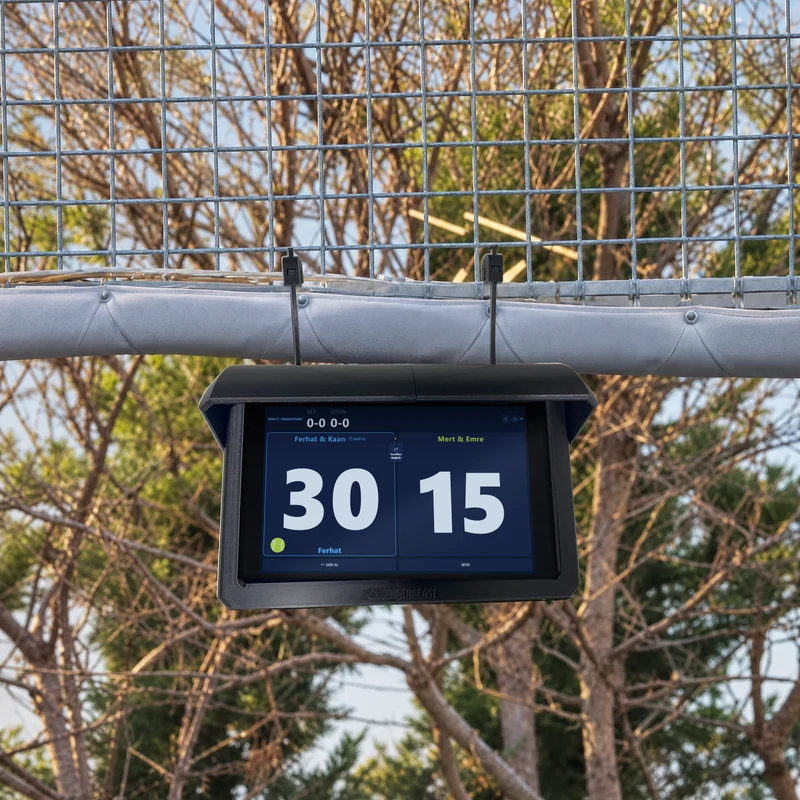
Tablet holder
A rain-protected holder for outdoor courts, a flexible-arm holder for indoor courts. It hangs on the court door’s mesh.
Club guide
Mount a tablet on each court door, pick your club plan in the app and follow the steps on this page. You don’t even need an account on the court tablets.
Our shop ships within Turkey; elsewhere the shop’s Find sellers button shows similar holders and remotes from sellers in your country. The tablet is your own or any off-the-shelf model.
A rain-protected holder for outdoor courts, a flexible-arm holder for indoor courts. It hangs on the court door’s mesh.
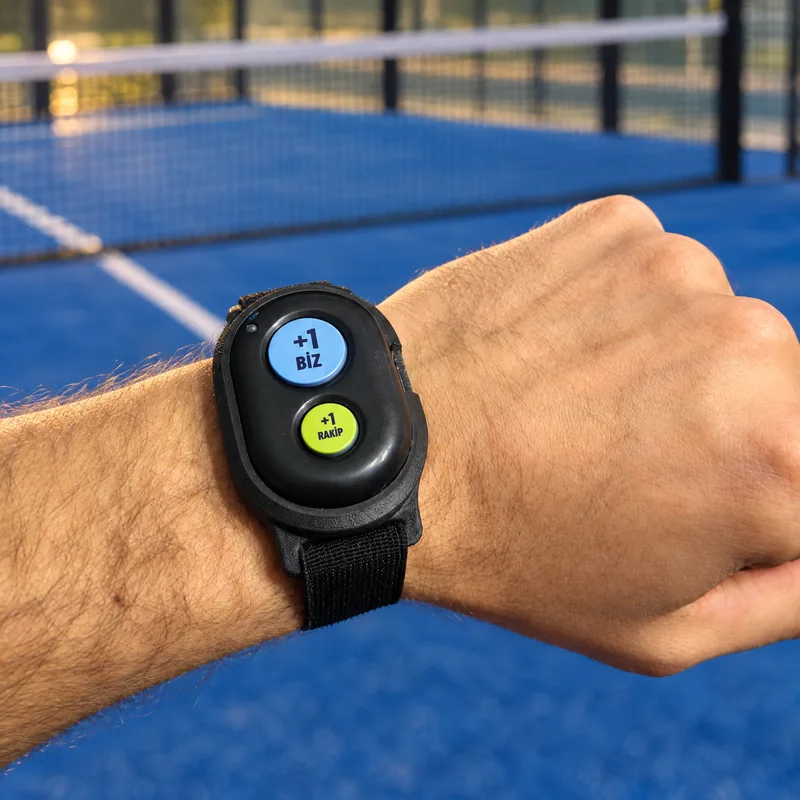
Wrist strap, magnet clip or keyring. The big button scores for “us”, the small one for the opponents.
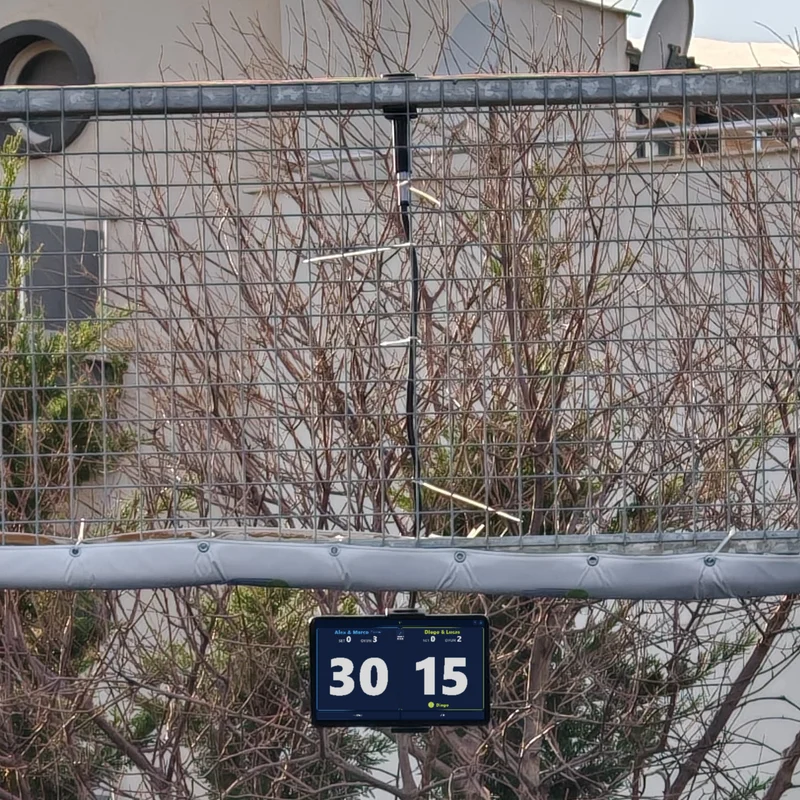
An 8–11 inch Android tablet is recommended; iPad works too. On Android the remote connects from inside the app with one tap.

The ScoreSay app’s club subscription: court screens, Club TV, tournaments and sponsor space. One court runs on the free plan.
Needed from 2 courtsGet ScoreSay from the App Store or Google Play. You’ll run the club from your phone, and from a computer at scoresay.com/panel.
On the sign-in screen, under “What will you use it for?”, choose Club (“Manage club and courts”) and sign in with the code sent to your e-mail.
The setup wizard opens: enter your club’s name and details and, if you like, add your logo. The logo shows on court screens, Club TV and tournament pages; you can add it later too.
In the “Courts” step enter how many courts you have and their names. With 2 or more courts the app shows the club plans: pick the one that fits and subscribe in the app. If you received an activation code from us, tap Have an activation code?, type it in and tap Activate.
Hang the holder on the mesh above the court door. Install the ScoreSay app on the tablet and place it in the holder. You don’t need to sign in on the tablet.
In the wizard’s “Court devices” step tap the court’s row: a QR appears on your phone. Open the camera on the court tablet, scan the QR and tap CONNECT on the screen that opens. The tablet is now that court’s score screen.
On the tablet tap Connect my remote, turn the remote on and press a button, then tap Pair in the window that appears. The big button scores for you, the small one for the opponents; once the match has started, a quick double press undoes the last point.
Add sponsor images: they rotate on court screens and Club TV while courts are free, and the report shows how often each was shown. Sponsor fees can cover the cost of your plan.
In the app open My club → Club TV, open the address it gives you in the browser of the TV at reception or the café and press OK on the TV remote. Every court’s score on one screen; when a tournament starts, the TV switches to it on its own.
Players start the match on the court tablet and score with the remote; the score shows live on the court screen and Club TV, with voice announcements if you like. For a tournament: Tournaments → Create a club tournament — the court devices keep the score.
[email protected] — tell us which step you’re on and we’ll sort it out together.
scoresay.com/panel — reports, sponsors and team invites.
No. The court tablet works without an account; scanning the QR and tapping CONNECT is enough. You manage the club from your own phone.
Yes, the tablet needs an internet (Wi-Fi) connection; the score reaches Club TV and the reports over the internet.
Yes. A player connects their own remote with “Connect my remote” at the start of the match; it’s released when the match ends.
Yes, from the Courts tab. If you go over your plan’s court count, you can move up to the next plan.